How to delegate project accountabilities
In this section, you will find all the information you need to set up Team Roles for your Project so that you will be able to delegate responsibilities effectively. In this tutorial, we will take as example the delegation of Access Control management, but the same steps can be applied to delegate other responsibilities as well.
Prerequisites
- Platform Team must have enabled Team Roles in Witboost
- Your Project must be onboarded in Team Roles. See the Onboarding section below for more details.
- You must be the Owner of the Project
- The Team Role you want to delegate, e.g. the Data Access Manager, must be enabled by the Platform Team.
Onboard your Project in Team Roles (if not already onboarded)
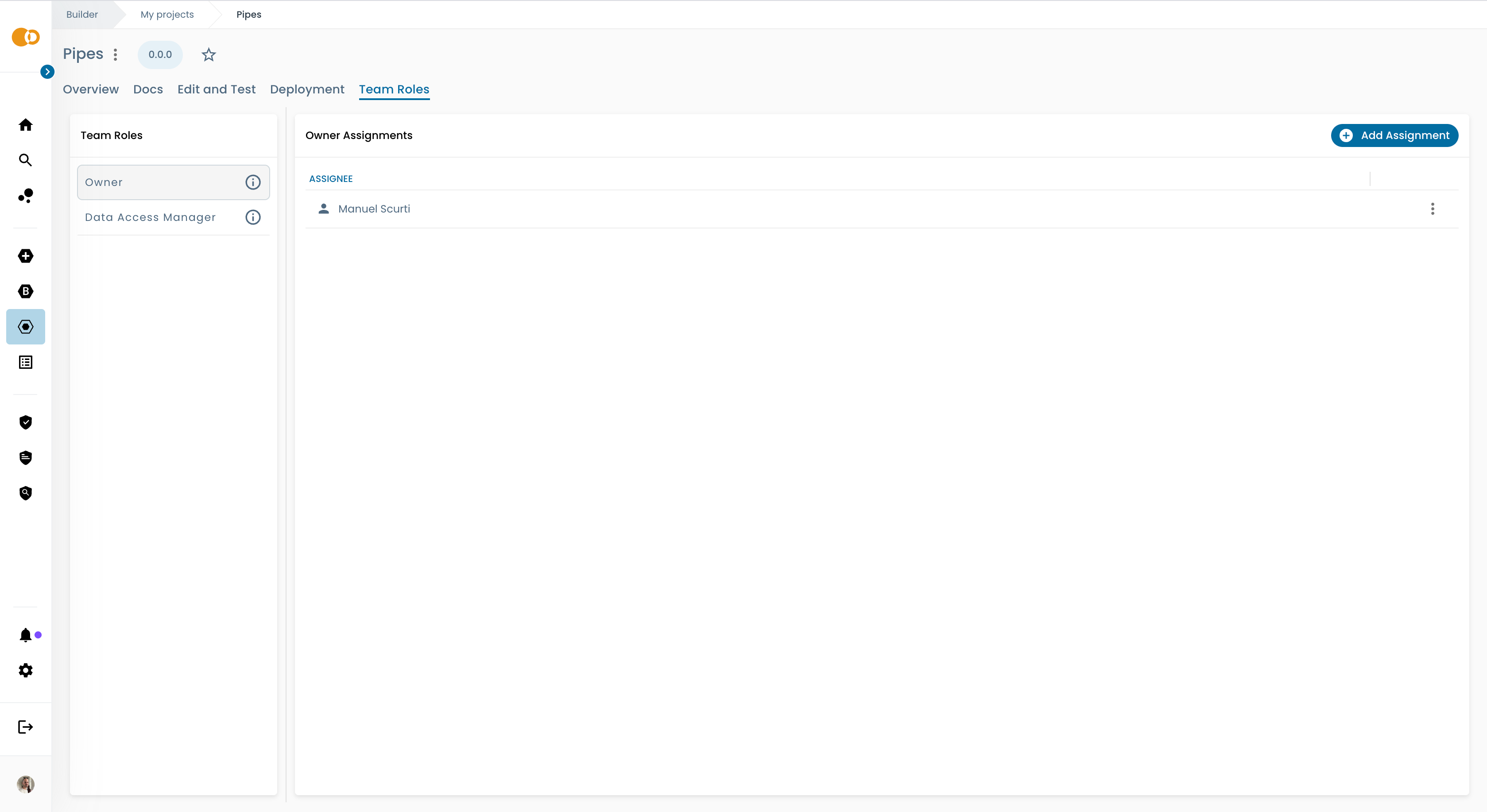
Visit your Project's Team Roles section by going into My Project > Your Project page > Team Roles.
If your Project is not onboarded in Team Roles yet, you will see a message prompting you to onboard your Project:
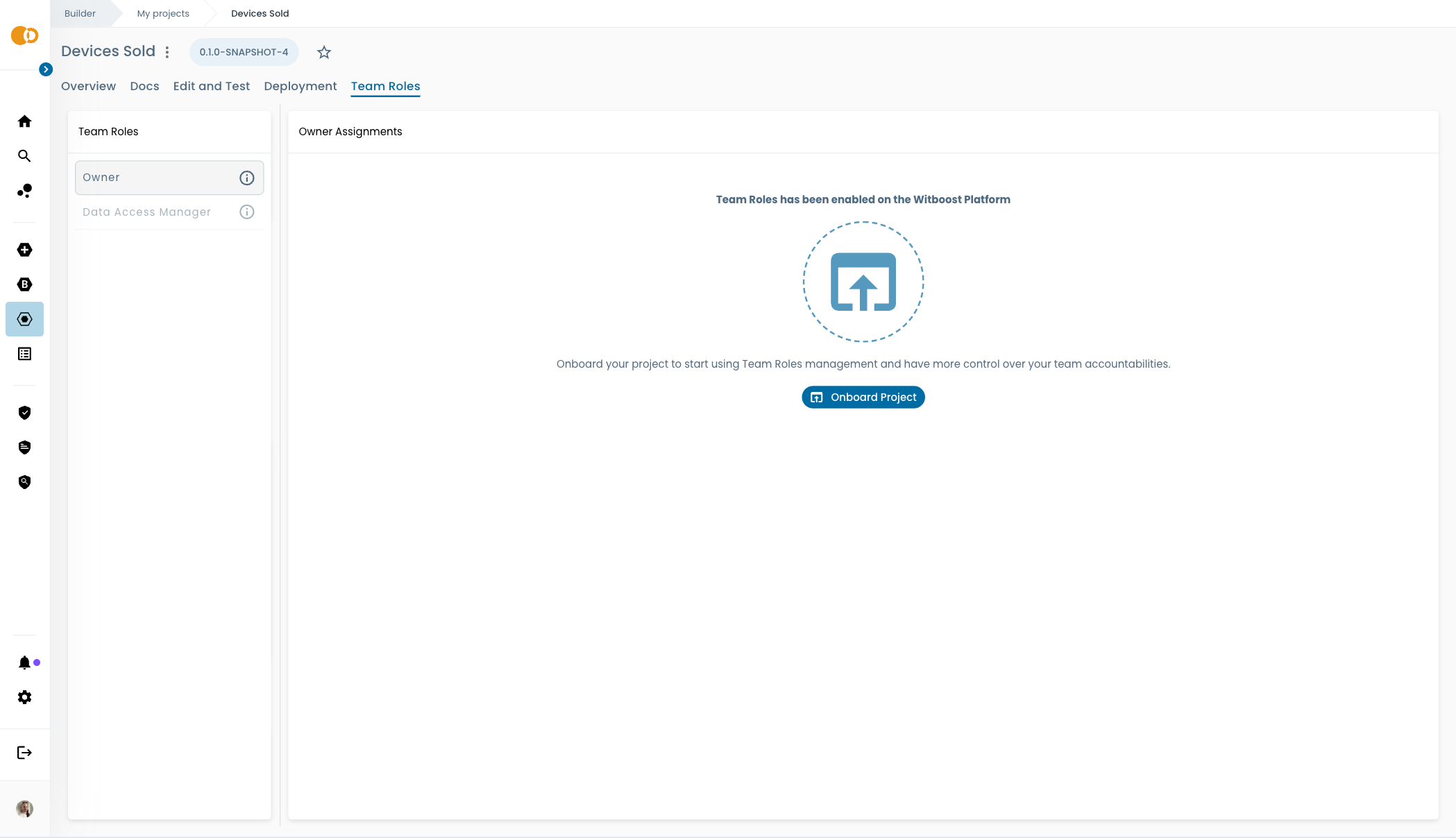
Click on the Onboard button. Once you click the button, you are ready to start.
The onboarding process is a one-time action that is shown up only to the user who appears as the Project Owner in the Project descriptor at field projectOwner or dataProductOwner, and the process may be optional if your project was created after Team Roles was enabled.
In fact, if you don't see the Onboard button but you see that you are correctly listed as a Project Owner or Limited Project Owner, then this step was already performed automatically by Witboost when you created the Project.
If you don't onboard your project in Team Roles, all the accountabilities around the Project lifecycle will be managed by the Project Owner appearing in the Project descriptor, but you won't be able to assign other users to split accountabilities.
Assign someone to a Team Role
As an Owner or Limited Owner, you can assign users to each Team Role. When you assign someone to a Team Role, they are becoming responsible for the accountabilities related to that role.
Here is how it's done in a few simple steps from the Team Roles section of your project:
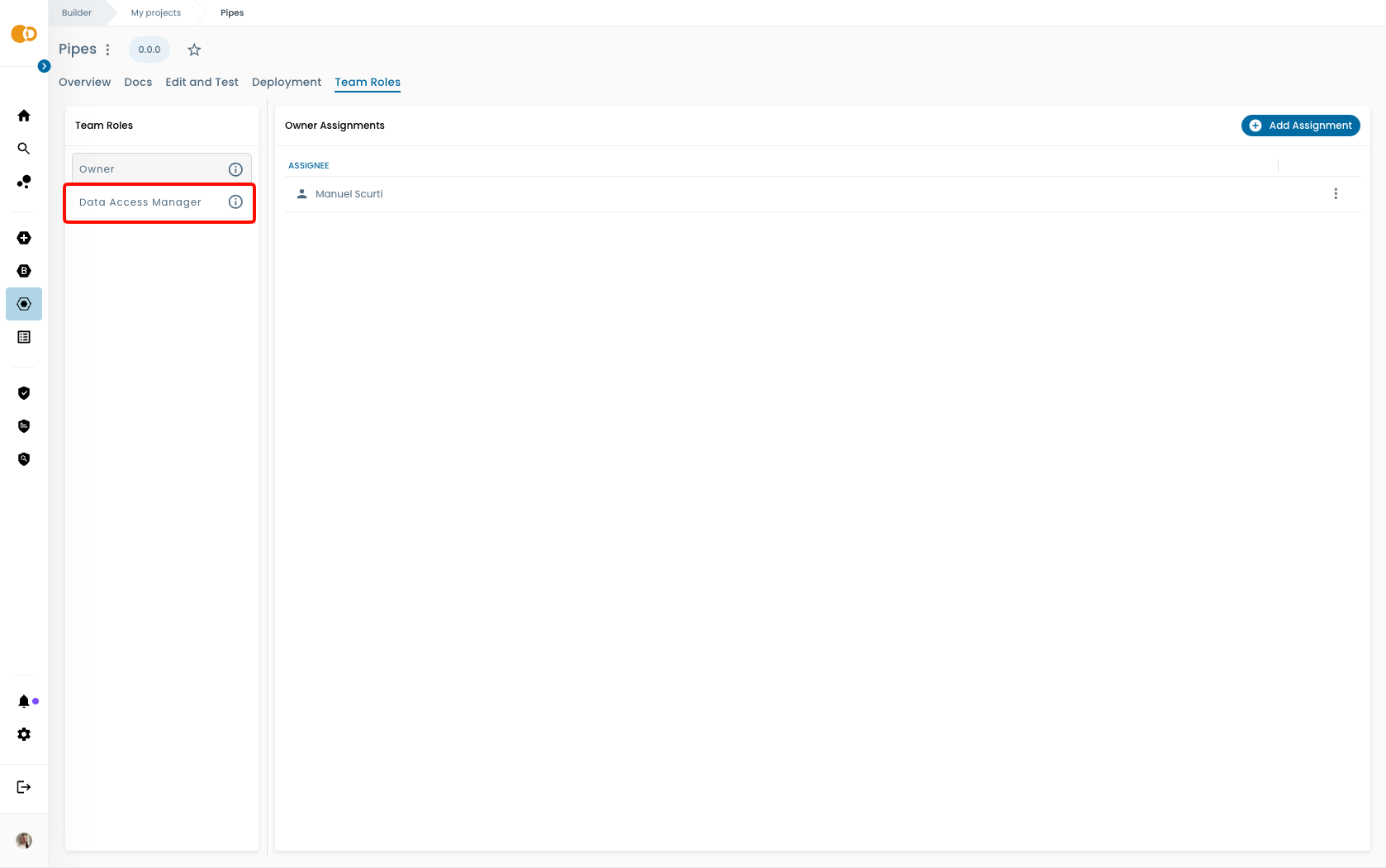
- On the left side, click on the Team Role for which you would like to edit assignments
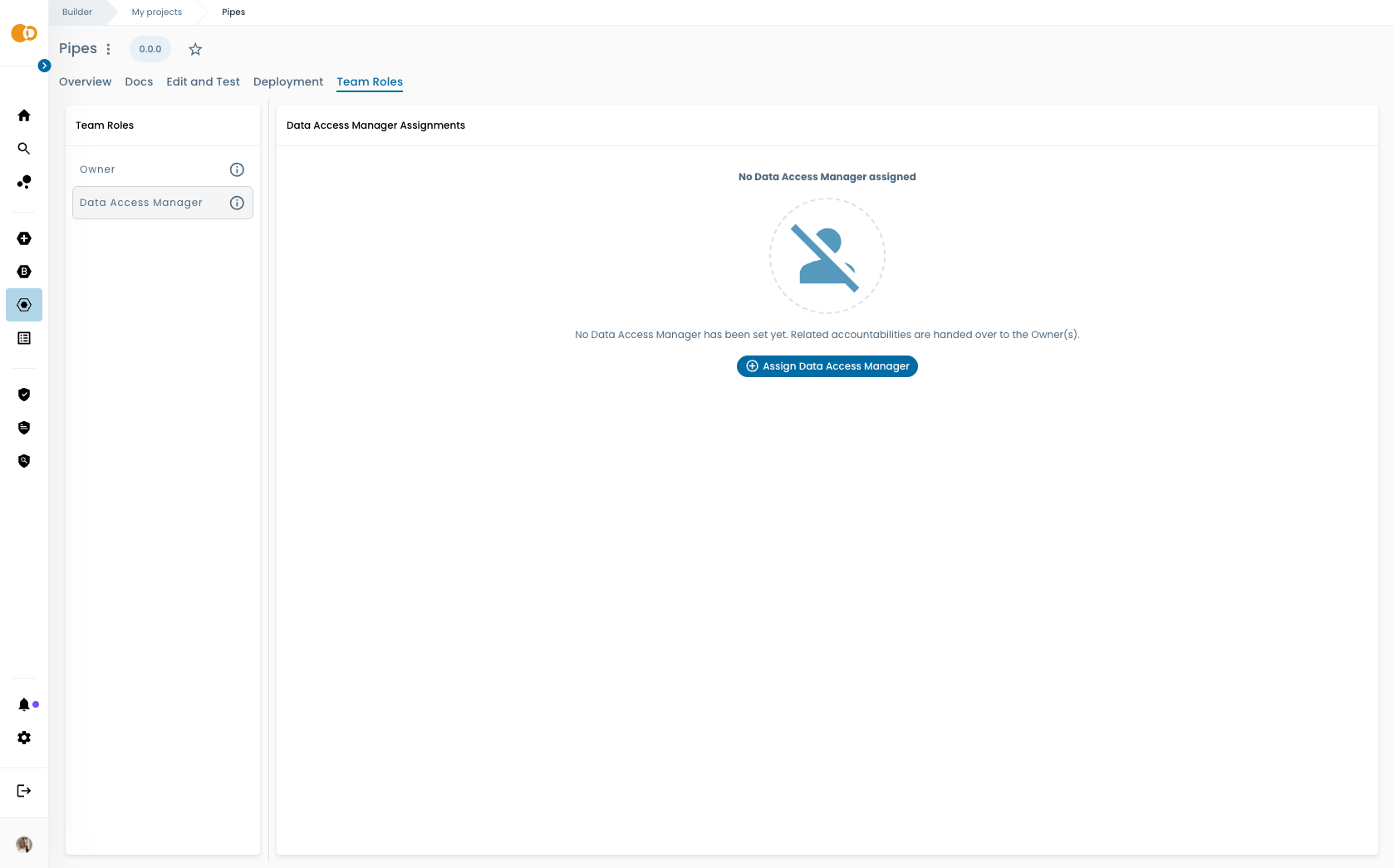
- Click on Assign Data Access Manager
If you already have someone assigned to that role, you can click on the Add assignment button in the upper right corner of the panel to add another assignment
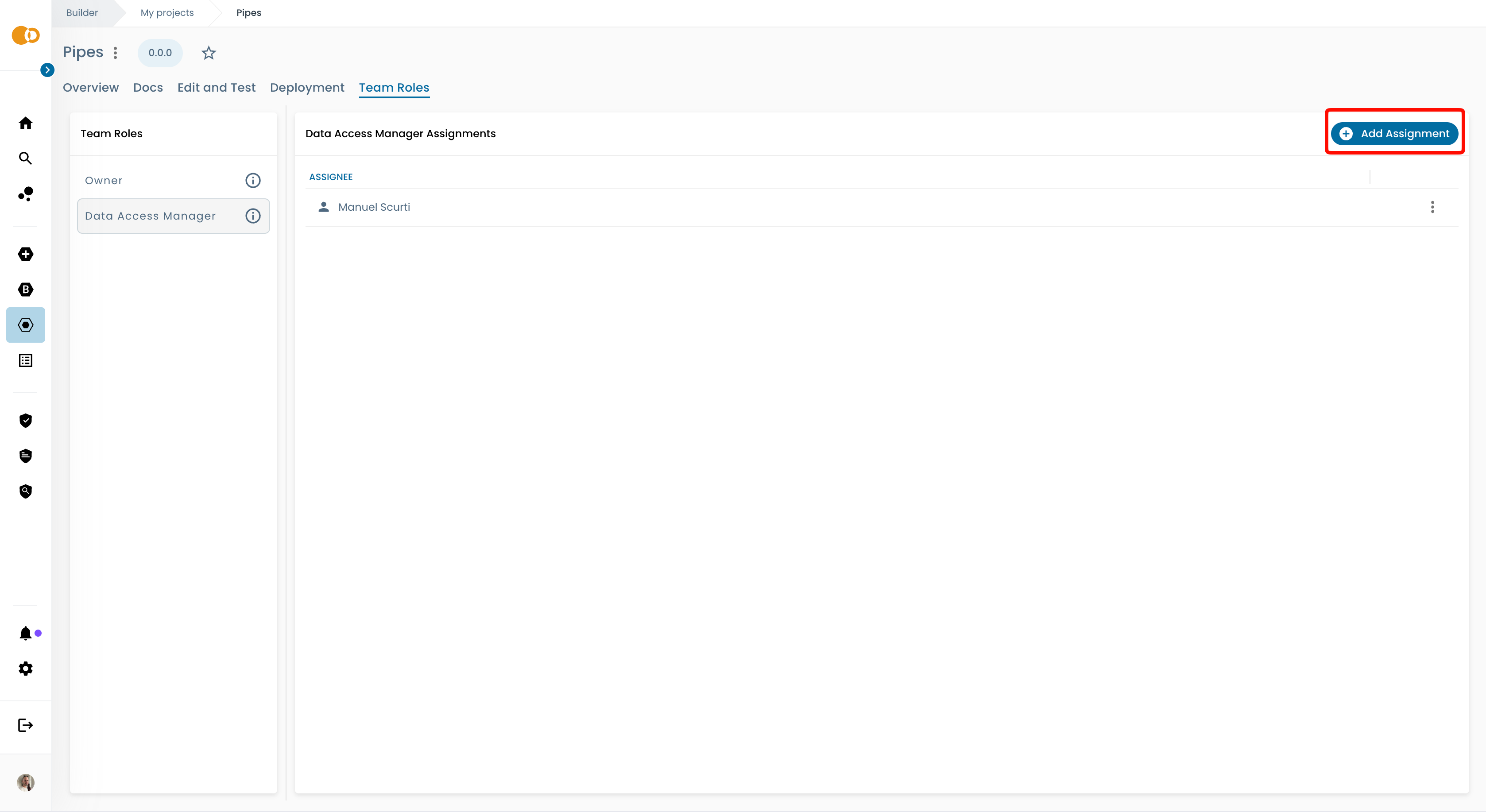
Having multiple assignees for the same Team Role can be useful. For example, if you have multiple Data Access Managers assigned, when one of them is not available, the others can step in to manage Access Control requests without the need to change Team Roles assignments.
The Owner Team Role is the only exception, since Witboost needs only one Owner per project when building the Project Descriptor. If you need more, you can assign other users as Limited Owner.
- A drawer will open, pick a user to assign to the role and click on the
Assignbutton.
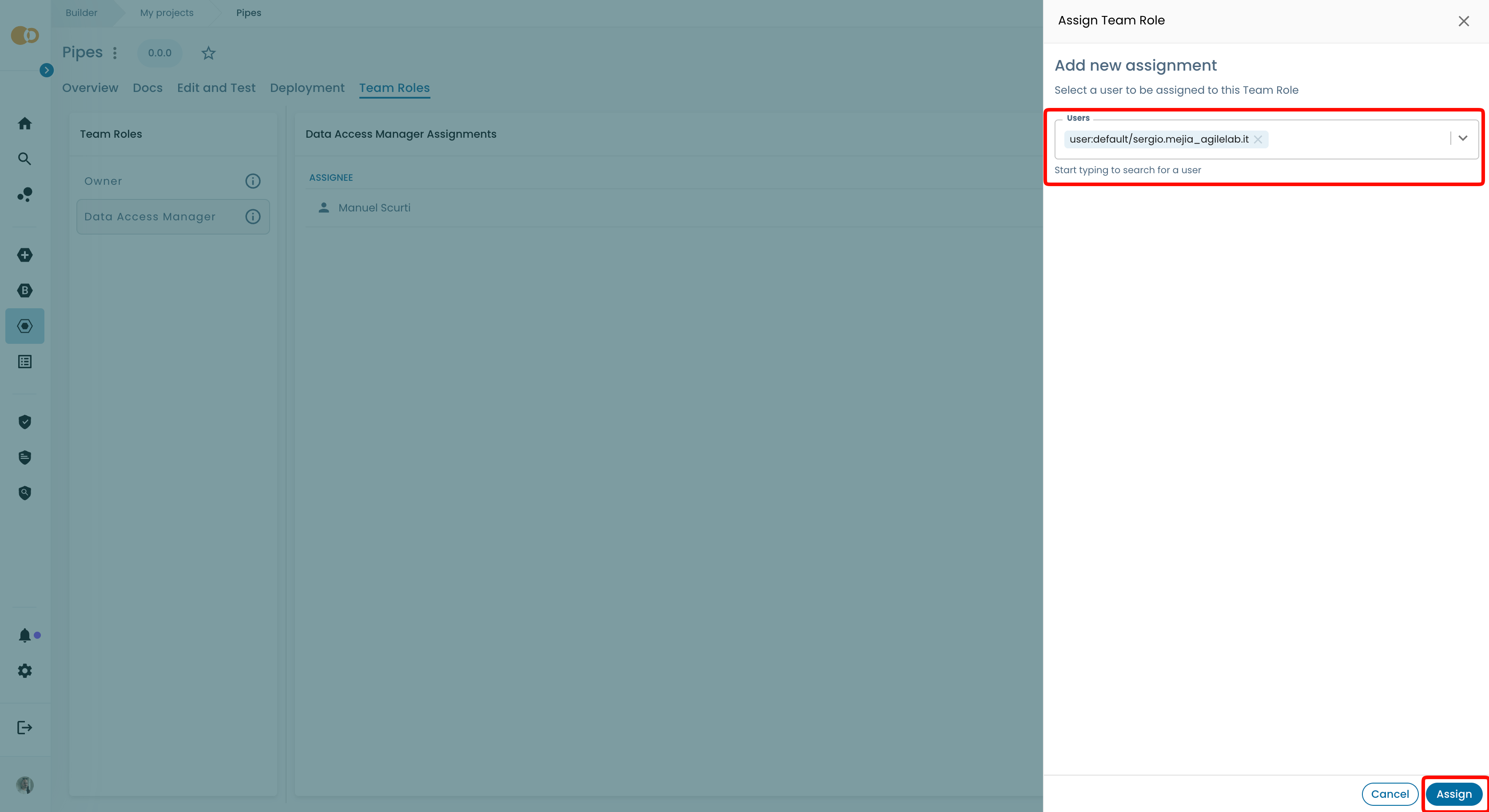
When you assign someone to a Team Role, they are becoming responsible for the accountabilities related to that role, so this also means that you as Project Owner or Limited Project Owner will no longer receive, to make an example, Access Control requests notifications. However, you will still be able to see and manage them from the Access Control panel in the Marketplace.