Configure Workflows
This guide explains how administrators set up and manage workflow types in Administration panel -> Workflows.
Each workflow type may have its own fields and options, but the configuration and version lifecycle works the same way for all of them.
Create and publish a configuration
- Open Administration panel -> Workflows.
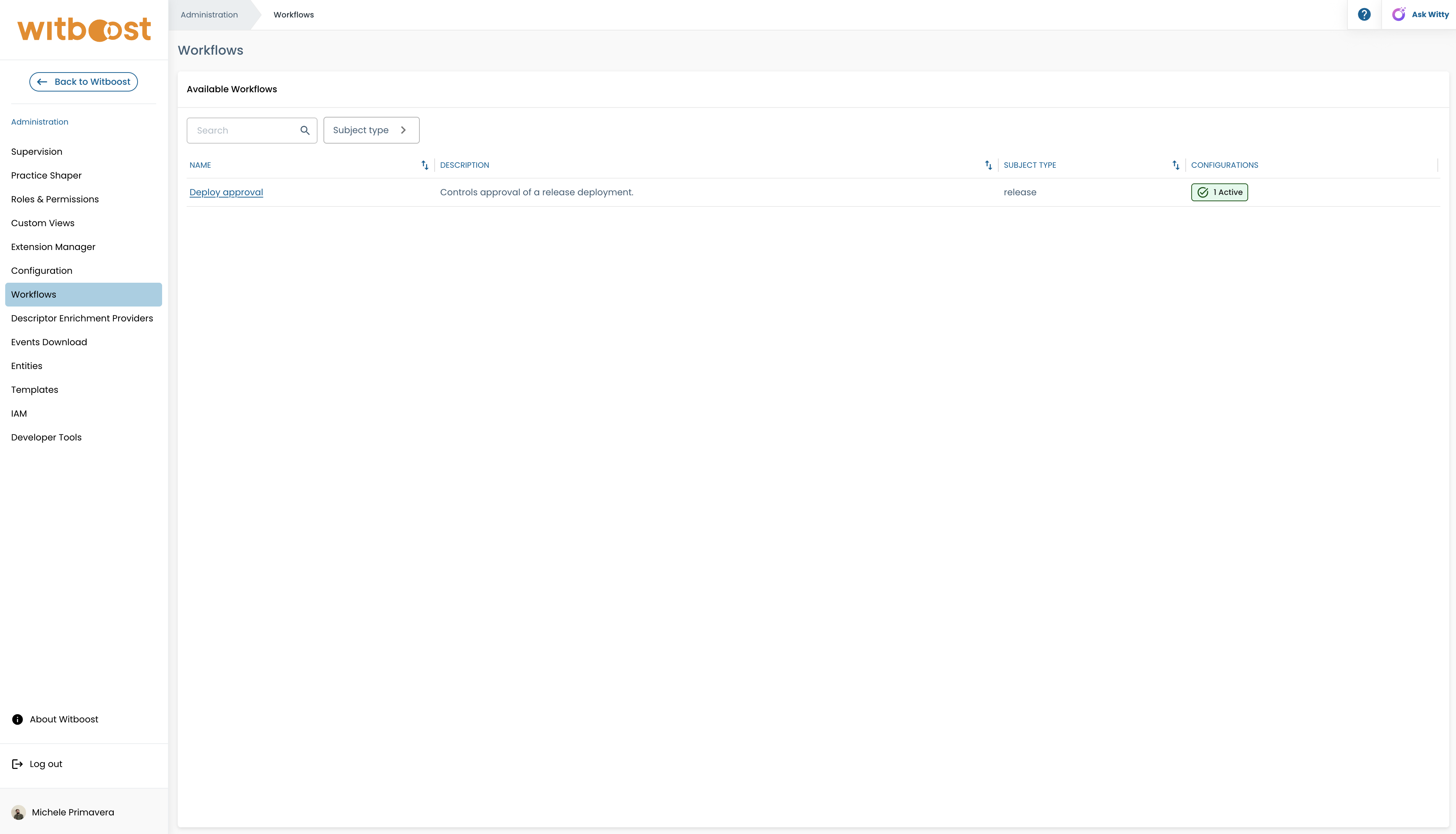
- Select a workflow type and open the configuration editor.
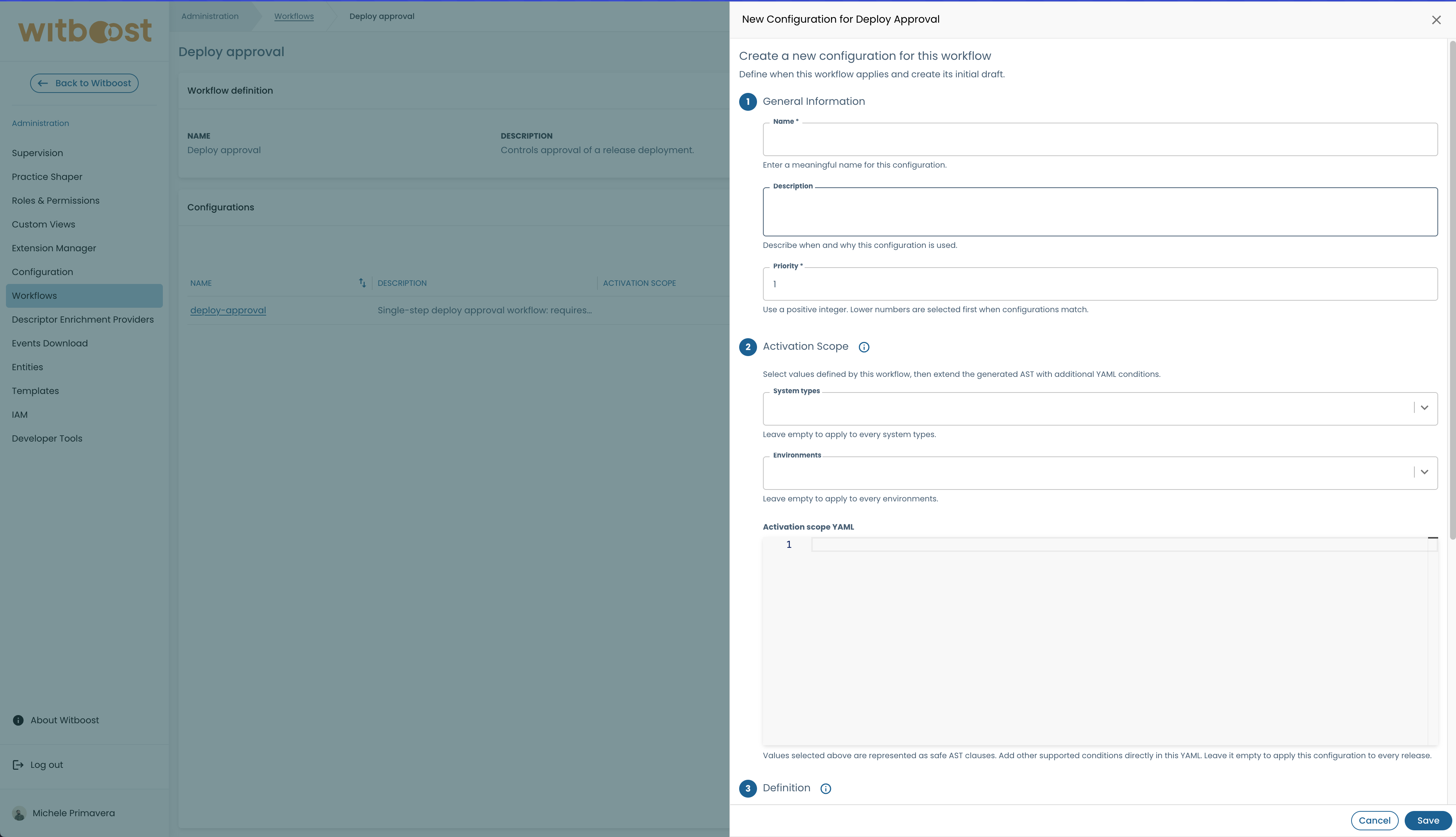
- Set a descriptive name, positive priority, and activation scope.
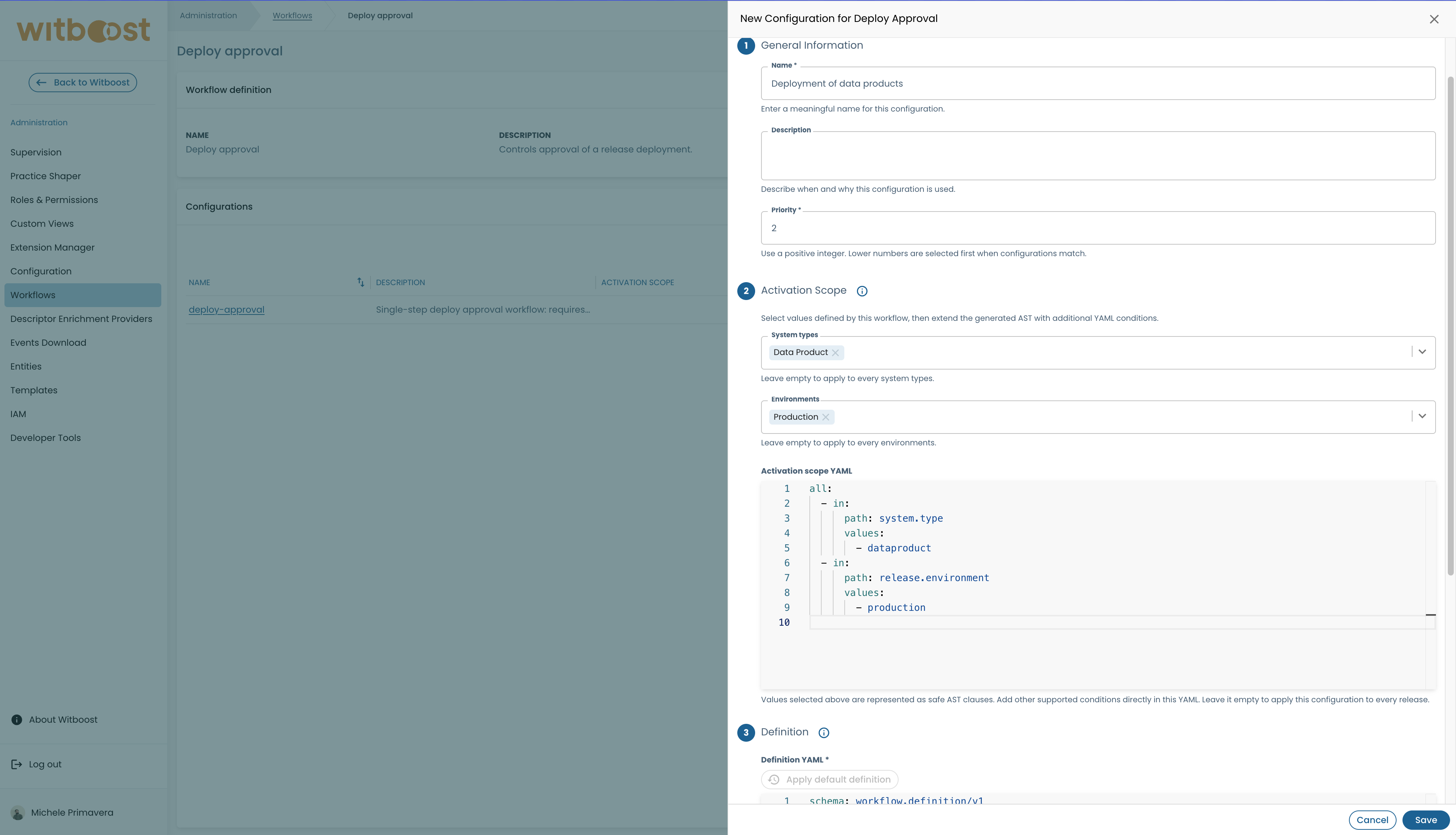
- Review the initial workflow definition and save the configuration. It starts
as a disabled draft.
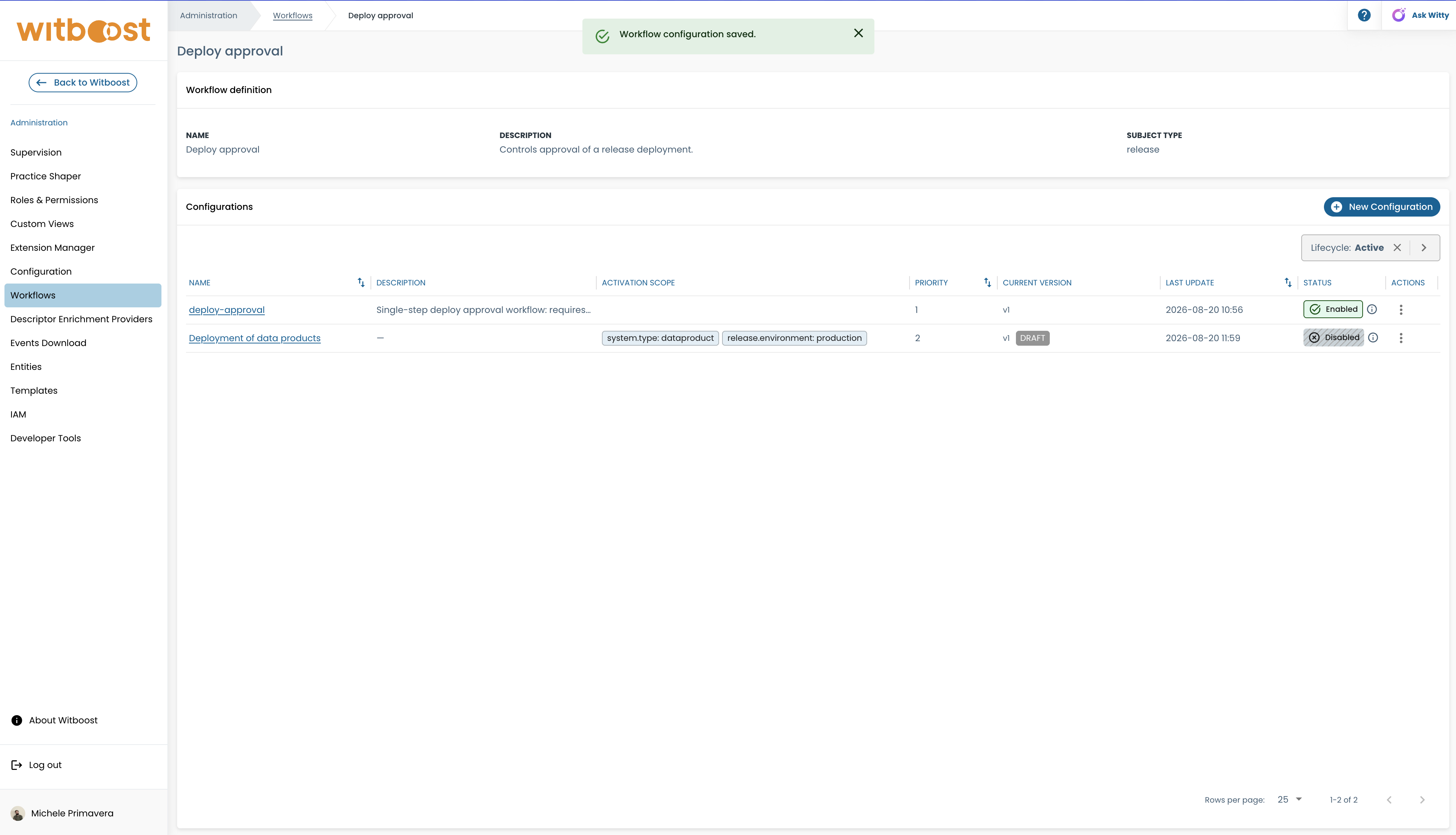
- Enable the configuration.
- Publish its draft.
Only an enabled configuration with a published version can be used for new workflow starts.
Follow the configuration lifecycle
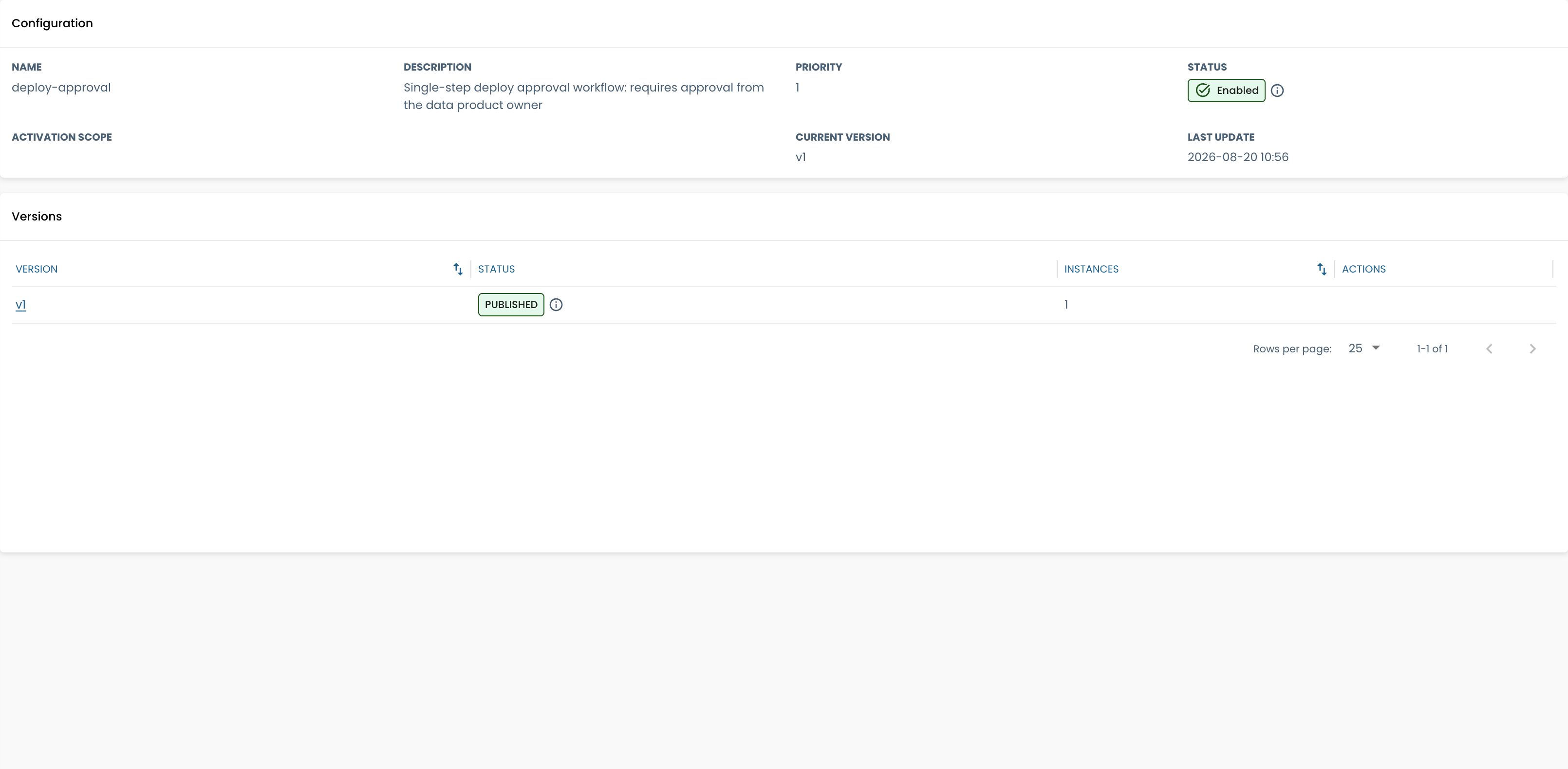
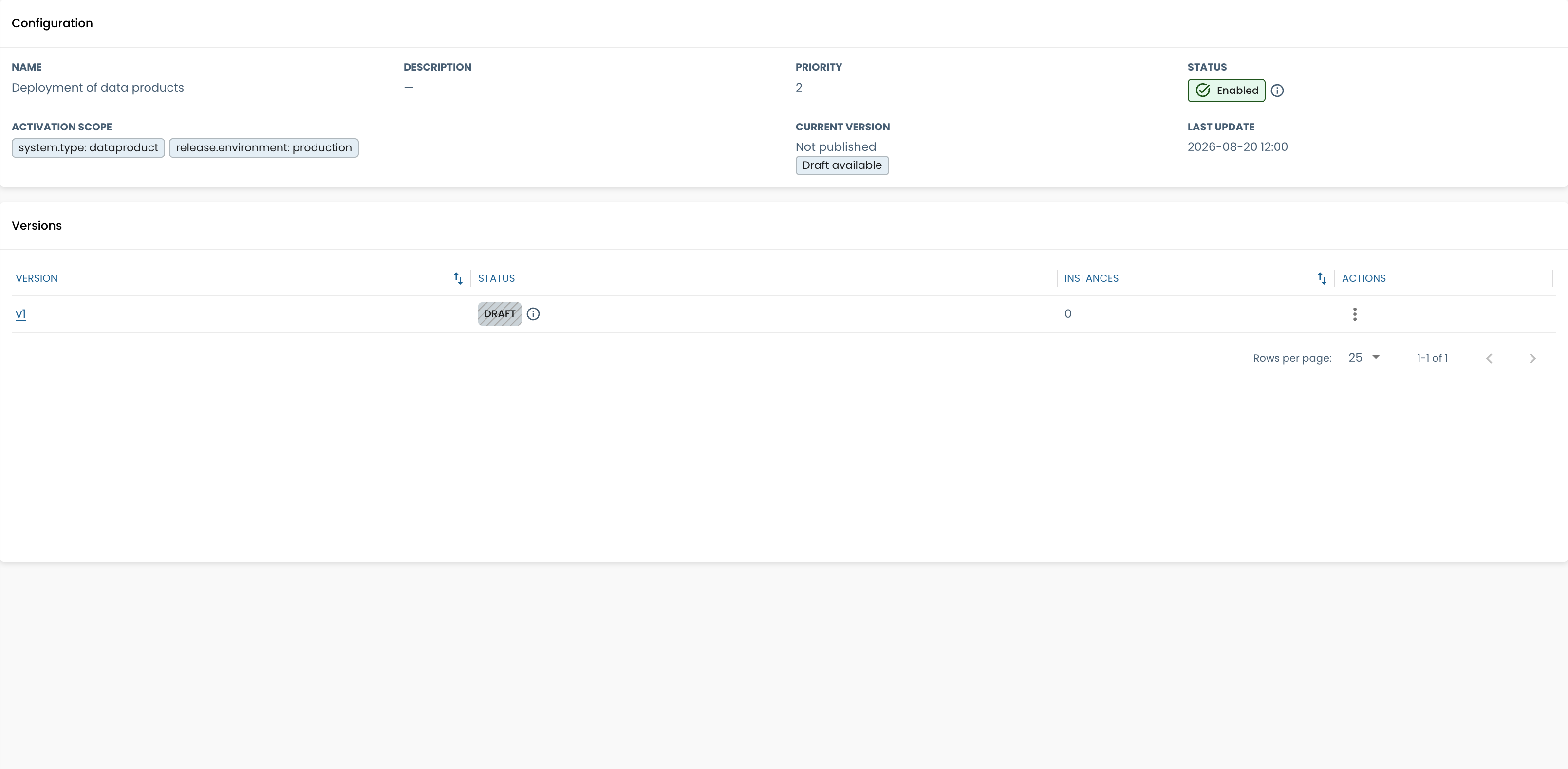
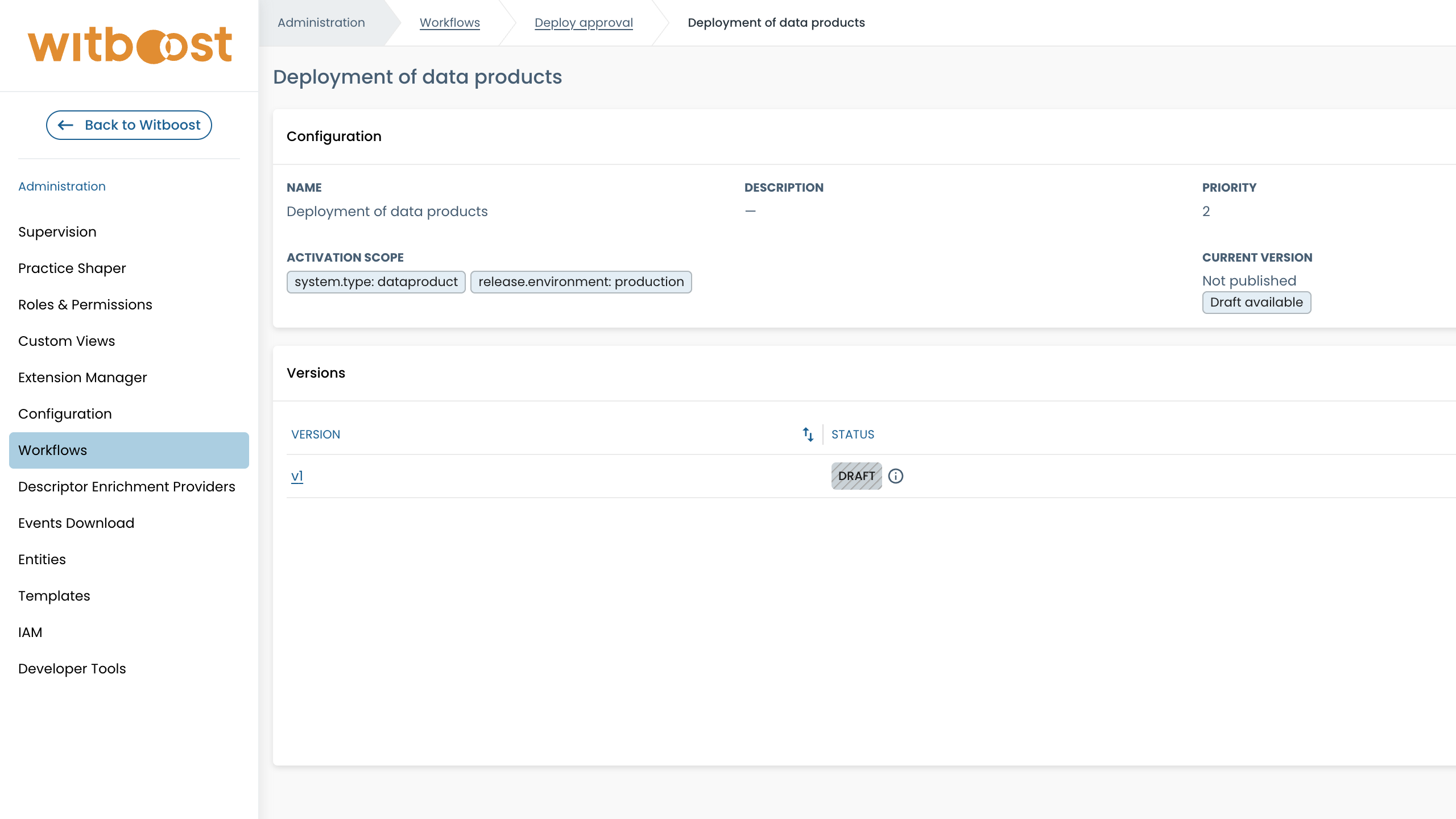
The workflow detail page is where you manage one configuration. It shows the current routing settings, the list of saved versions, and the number of workflow instances created from each version.
The usual lifecycle is:
- Create a configuration. Its first version is
DRAFTand the configuration is disabled. - Review or edit the draft definition, then enable the configuration.
- Publish the draft. It becomes
PUBLISHEDand can be selected for new workflow starts. - When the definition must change, create a new draft from a published version.
- Publish the replacement draft. The previous published version becomes
RETIRED; instances already using it keep using it.
The version list can contain the following states:
| Version state | Meaning | Available operation |
|---|---|---|
DRAFT | Editable definition, not used for new instances | Edit, publish, or delete draft |
PUBLISHED | Current definition used by new matching instances | View version and instances |
RETIRED | Replaced definition kept for history and for instances already using it | View, inspect instances, archive when unreferenced |
ARCHIVED | Retired version kept for history | View only |
Work with drafts
Each configuration can have only one draft at a time. A draft is either the initial version created with the configuration or a copy of a selected existing version.
Use a draft to change a workflow definition safely:
- Open a published or retired version and select Edit.
- Confirm the creation of a draft, if prompted.
- Update the definition and save it while it remains a draft.
- Resolve all validation errors.
- Publish the draft when it is ready for new instances.
Deleting a draft discards only its unpublished changes. It does not change the current published version, configuration routing, or existing instances.
Configure routing
Priority and activation scope belong to the configuration, not to a saved definition version. Editing either changes only future workflow starts: it does not create a draft, publish a version, or modify a running instance.
Priority
Priority is a positive integer. Lower values are selected first. Enabled configurations of the same workflow must have distinct priorities.
Use lower numbers for more specific rules and higher numbers for fallback rules:
| Configuration | Scope | Priority |
|---|---|---|
| Specific production rule | Subject type and production environment | 10 |
| Production fallback rule | Production environment | 20 |
When both configurations match, the engine selects priority 10.
Activation scope
An activation scope is the rule that decides when a configuration should apply. For example, you can use it to say that a workflow should run only for production deployments, or only for a specific system type.
The UI shows the filters available for the selected workflow type. An empty scope means the configuration can match any supported case, and is stored as:
exists:
  path: subject.ref
Supported operators are:
| Operator | Meaning |
|---|---|
all | Every nested condition must match. |
any | At least one nested condition must match. |
eq | A context path equals one value. |
in | A context path belongs to a list of values. |
exists | A context path is present. |
For example, a release-oriented workflow can route data products in production and staging with:
all:
  - eq:
      path: system.type
      value: data-product
  - in:
      path: release.environment
      values: [staging, production]
Witboost validates both the structure of the expression and the fields used in it.
Change a workflow definition
Once a definition is published, it cannot be edited in place. To change it:
- Open the configuration's active version.
- Edit the definition.
- Confirm creation of a draft when prompted.
- Save the draft and resolve validation errors.
- Publish the draft for new instances.
A configuration has at most one editable draft. Publication retires the previous published version. Existing instances continue using the version they started with.
Each workflow type supports a defined set of triggers, conditions, actions, and settings. A definition can use only those supported elements. For a detailed format description, see Workflow Definition Reference.
Inspect and operate instances
Every version shows how many workflow instances were created from it. Open one of those counts to see the corresponding list of instances:
| List | Includes | What administrators can do |
|---|---|---|
| Pending instances | Active instances that are progressing normally | Terminate one or multiple instances |
| Blocked instances | Instances with a blocked required action | Inspect the failure reason, then terminate one or multiple instances if required |
| Completed instances | Successful, business-failed, and cancelled instances | Inspect history only |
The table shows the resource, current stage, runtime status, selected priority, and the activation scope used when the instance started. It also shows stage and creation timestamps. Blocked lists include the failure reason.
These values are recorded when the instance starts. They help explain why that configuration was selected, even if routing settings change later.
Administrators can terminate pending or blocked instances individually or in
bulk. Termination is irreversible: the instance becomes CANCELLED, any
pending step is stopped, and the workflow does not reach a successful outcome.
Termination does not change configuration routing, and it does not change the
result of failed or completed instances. Completed instances are read-only and
cannot be terminated.
Disable, archive, and purge
- Disable stops a configuration from being selected for new starts and requires no active instances.
Archive a configuration
Archiving is a non-destructive way to retire a disabled configuration. It is removed from the default active list and becomes read-only, but remains available from the Archived configuration list.
The archived record keeps its version history and completed instance history. Existing instances are not deleted, changed, or rerouted: a running instance continues with the version it already started with, and completed instances remain available for review.
For example, suppose a Deploy Approval configuration previously approved a release. Archiving that configuration prevents it from being selected for new deploy requests, but it does not revoke the completed approval. The same release identity remains approved because its successful workflow instance and saved definition history are still retained.
Permanently delete an archived configuration
The Purge action permanently deletes an archived configuration. It requires that no active instances remain, and cannot be undone.
Purge removes the configuration, its versions, terminal instances, action and step-by-step execution history. It resets the workflow history owned by that configuration.
For Deploy Approval, purging the archived configuration also removes historical approval evidence. A release that had been approved only through an instance owned by that configuration is no longer recognized as approved after the purge. A new matching configuration and a new deploy request must establish a new approval.
Changing routing never changes a workflow that is already running; it affects only future starts.